DcScan - Document Scanner
iOS Universel / Utilitaires
What Is DcScan?
DcScan turns your iPhone into a portable document scanner. Snap a photo, or pull in an image from your library or any app that shares images — WhatsApp, Messages, Mail, Safari, you name it. The app automatically straightens, crops, and polishes it into a clean, print-ready scan. Then share it however you like, with the text inside the document already recognized and embedded.
---
## Three Ways to Bring In a Document
### Tap the Shutter
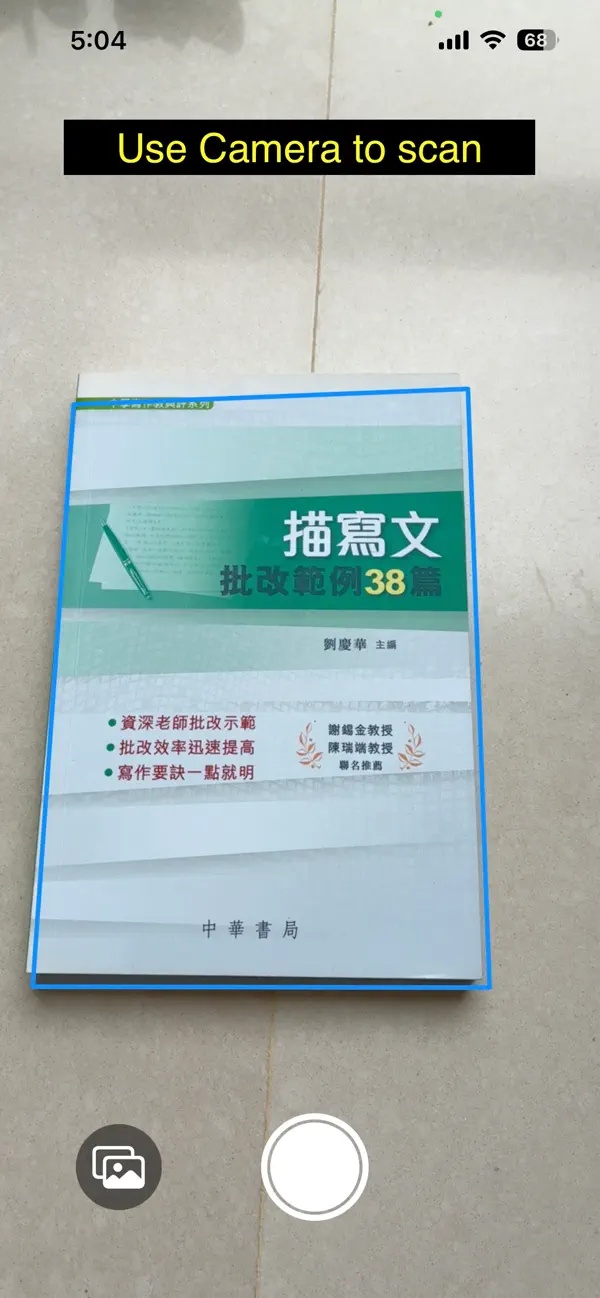
Open the app and point your camera at any document. DcScan's built-in viewfinder highlights the edges in real time — no need to line things up perfectly. Just snap.
### Pick From Your Photo Library
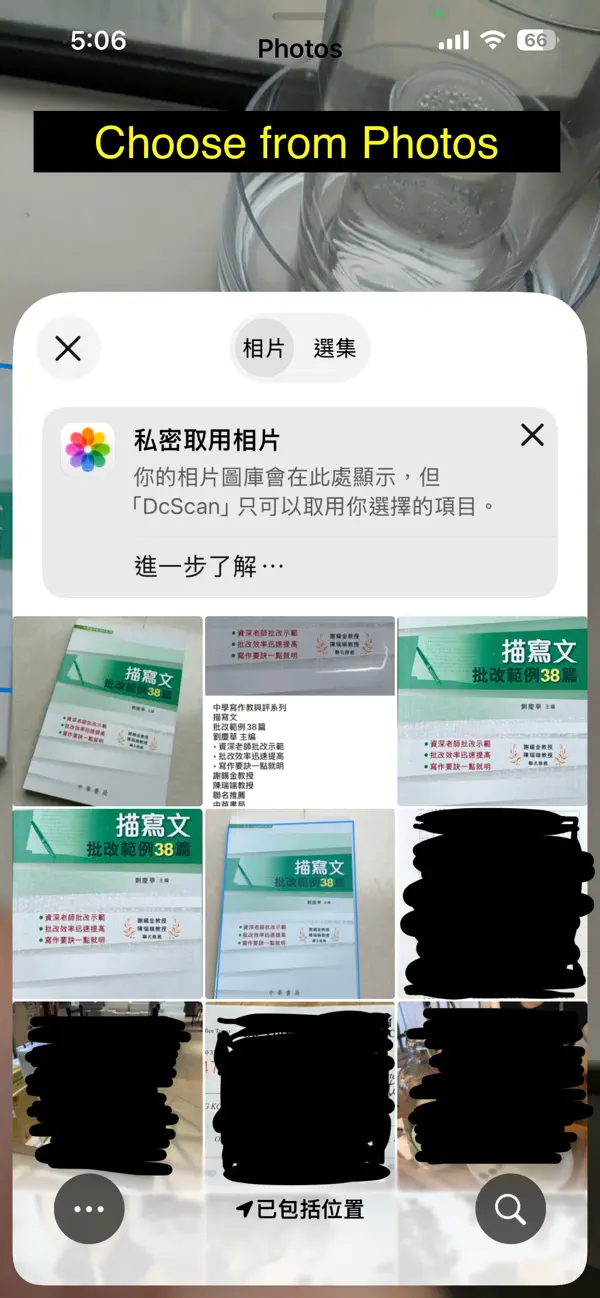
Already snapped a photo earlier? Pull it from your library. The app detects the document inside the image and cleans it up just the same.
### Receive From Any App
This is where it gets powerful. In WhatsApp, Photos, Mail, Safari, Files, or any app with a share button — tap **Share**, choose **DcScan**, and it opens right there ready to scan. No switching apps, no saving-then-reopening. The scan happens inline and the cleaned-up version can be sent back to wherever you came from.
---
## What Happens After You Scan
### Auto-Straighten & Crop
The app's AI finds the edges of your document — even if they're skewed, folded, or in uneven lighting — and squares it up to a flat, straight rectangle. Like a desktop scanner, but with one tap.
### Fine-Tune the Edges
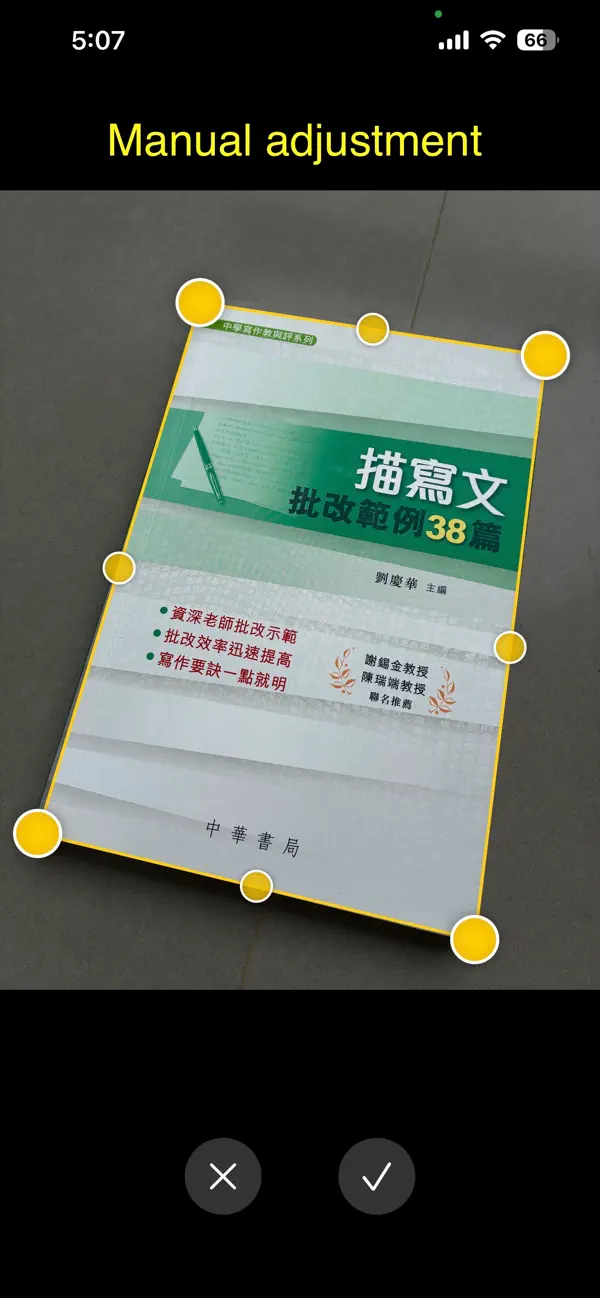
If the auto-detect didn't quite get it right, you can drag any corner or edge yourself. Eight draggable handles give you total control. The app darkens everything outside the document so you see exactly what you're keeping.
### Read the Text (OCR)
DcScan reads the words inside your scan. It supports English, Traditional Chinese, and Simplified Chinese out of the box — add more languages in Settings. The recognized text travels with your scan so it's searchable later.
---
## What You Can Do With the Finished Scan
### Save to Your Photo Library
One tap saves a clean, cropped JPEG to your camera roll. The recognized text is baked into the file's metadata, so apps like Photos and Files can search it.
### Share Anywhere
Tap share and pick your destination:
- **Mail** — sends a nicely formatted email with the scan embedded and the recognized text in the body
- **Print** — sends it straight to any AirPrint printer
- **Messages / WhatsApp / Any App** — sends a clean JPEG with embedded text
- **Copy** — copies a rich text version with the image and text together
### Hand Off to Shortcuts / Siri
Say "Scan document with DcScan" to Siri, or use the **Scan Document** action in the Shortcuts app. You can build automations — like "scan and save to a specific folder" or "scan and email to accounting" — without opening the app at all.
---
## Input Sources Summary
| You Have an Image... | Do This |
| --------------------------- | ------------------------------------------- |
| In front of you right now | Open DcScan → point camera → snap |
| Already in your camera roll | Open DcScan → tap gallery button → pick it |
| Sent to you on WhatsApp | Tap the image → Share → DcScan |
| In an email attachment | Long-press attachment → Share → DcScan |
| On a webpage in Safari | Long-press image → Share → DcScan |
| In the Files app | Long-press file → Share → DcScan |
| Any app with a share button | Share → DcScan |
DcScan appears in the same share menu you already use to forward, copy, or AirDrop — so the workflow is already familiar.
Quoi de neuf dans la dernière version ?
- The main app takes documents built-in Photos app or camera for processing
- Save processed document back to Photos app
- Able to save processed image to other app
- Other app can share to DcScan to process
- OCR function saves detected text as image's metadata (IPTC/XMP)
- OCR can recognize tables in image and preserve formatting
- Core function is available via iOS Shortcut
- Automatic with optional manual adjustment
- Manual rotation of the final de-skewed image