Siremic B
iPad / Musique
Siremic B is back!
***Special re-introductory offer!! Free for a limited time only!!***
Please be sure to rate and review. Thanks!
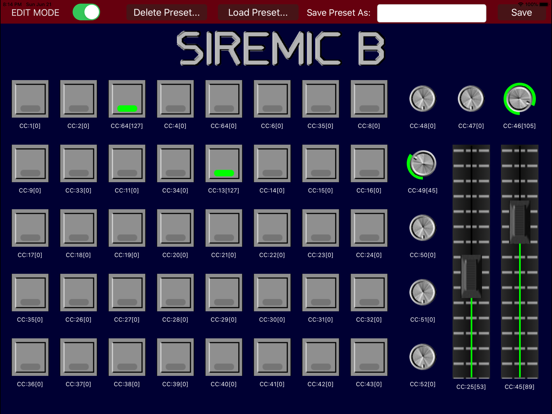
Siremic B (pronounced "Ceramic Bee") stands for Simple Remote Midi Controller (Buttons) -- and that's just what it is:
Siremic B allows you to control your MIDI software by sending MIDI CC (Control Change) messages via WiFi to your Apple MIDI enabled Mac or rtpMIDI enabled PC (both your iPad and your Mac/PC must be on the same network or, in the case of a Mac, may be connected via an ad hoc network -- see setup details below).
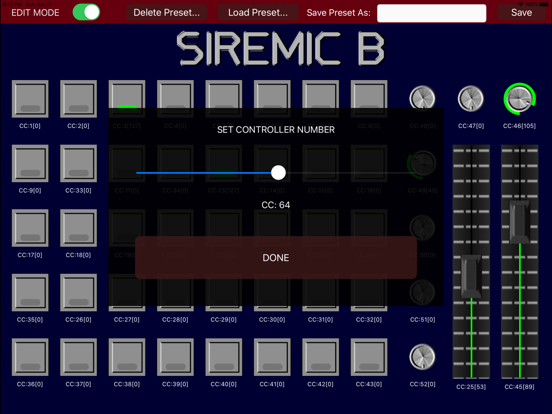
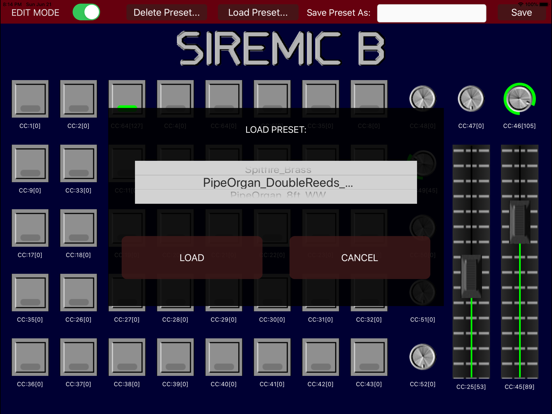
Literally at your fingertips, 40(!) customizable toggle buttons, 7 knobs and 2 faders are ready to jump into action. Freely assign any CC numbers and manage your presets. This button-centric setup makes Siremic B your perfect app for plugging in various sounds at the push of a button -- just like a virtual organ (and as a matter of fact, Siremic B was extensively tested connected to a pipe organ software instrument created in Native Instruments' Kontakt 5 sampler). Knobs and faders can be used from anything from controlling volume or panning to whatever your heart desires (and the software you control allows).
*************************
Mac setup:
1a. Make sure that both your iPad and your Mac are on the same network and that your network setup allows the transmission of Apple MIDI packets.
1b. If the network you're on doesn't allow the transmission of Apple MIDI packets, don't panic. Siremic B works just as well when you create an ad hoc network between your Mac and your iPad. Here's how:
i) On your Mac, click on the Wifi symbol in the top right corner of your desktop and select "Create Network…". Set up a network name, channel and security to your liking and click "Create".
ii) On your iPad, launch Settings. Then go to "Wi-Fi" and under "Choose a Network…", you should see the network you just created on your Mac. Tap on it.
2. Launch Siremic B on your iPad.
3. Go to "Launchpad" on your Mac, select "Utilities" and then "Audio MIDI Setup". If you don't see the MIDI window, go to Window and select "Show MIDI Window". Click on the Network icon. In the MIDI Network Setup window, make sure that your Bonjour name matches that of the network.
4. In the Directory List, you should see your iPad. Click "Connect" to establish a session. Your iPad's name should now show up in your Participants list. Play around with the controls in Siremic B. If everything is set up correctly, you will see red lines appearing in the black Latency bar (they are more easily visible if you use the knobs or faders, as Siremic B sends multiple values). That means that your Mac is reading Apple Midi Packets correctly.
*************************
PC setup:
1. Make sure that both your iPad and your PC are on the same network and that your network setup allows the transmission of Apple MIDI (rtpMIDI) packets. An rtpMIDI driver can be obtained from http://www.tobias-erichsen.de/software/rtpmidi.html *. To test the connection and data transmission between your iPad and your PC, a network protocol analyzer that can read rtpMIDI such as Wireshark may come in handy, available at wireshark.org *
2. Launch Siremic B on your iPad.
3. Launch the rtpMIDI setup frontend.
4. In the Directory List, you should see your iPad. Click "Connect" to establish a session. Your iPad's name should now show up in your Participants list. Play around with the controls in Siremic B. If everything is set up correctly, Wireshark will show rtpMIDI packets and their contents.
Last but not least, credit where credit is due: Big kudos go out to Pete Goodliffe, whose PGMidi source files and helpful hints on his blog were invaluable in creating this project.
* These websites are unaffiliated with Siremic B and therefore we cannot be held responsible for their contents.
Quoi de neuf dans la dernière version ?
This app is now fully 64 bit compatible.